Getting started
Getting started with ParcelIQ
Explore local property records and learn where saved searches and watchlists fit into your workflow.
Start with a property search
Open Search from the main navigation. Enter your search criteria and review the matching property records.
Open Search from the main navigation. Enter your search criteria and review the matching property records.
Select your search options
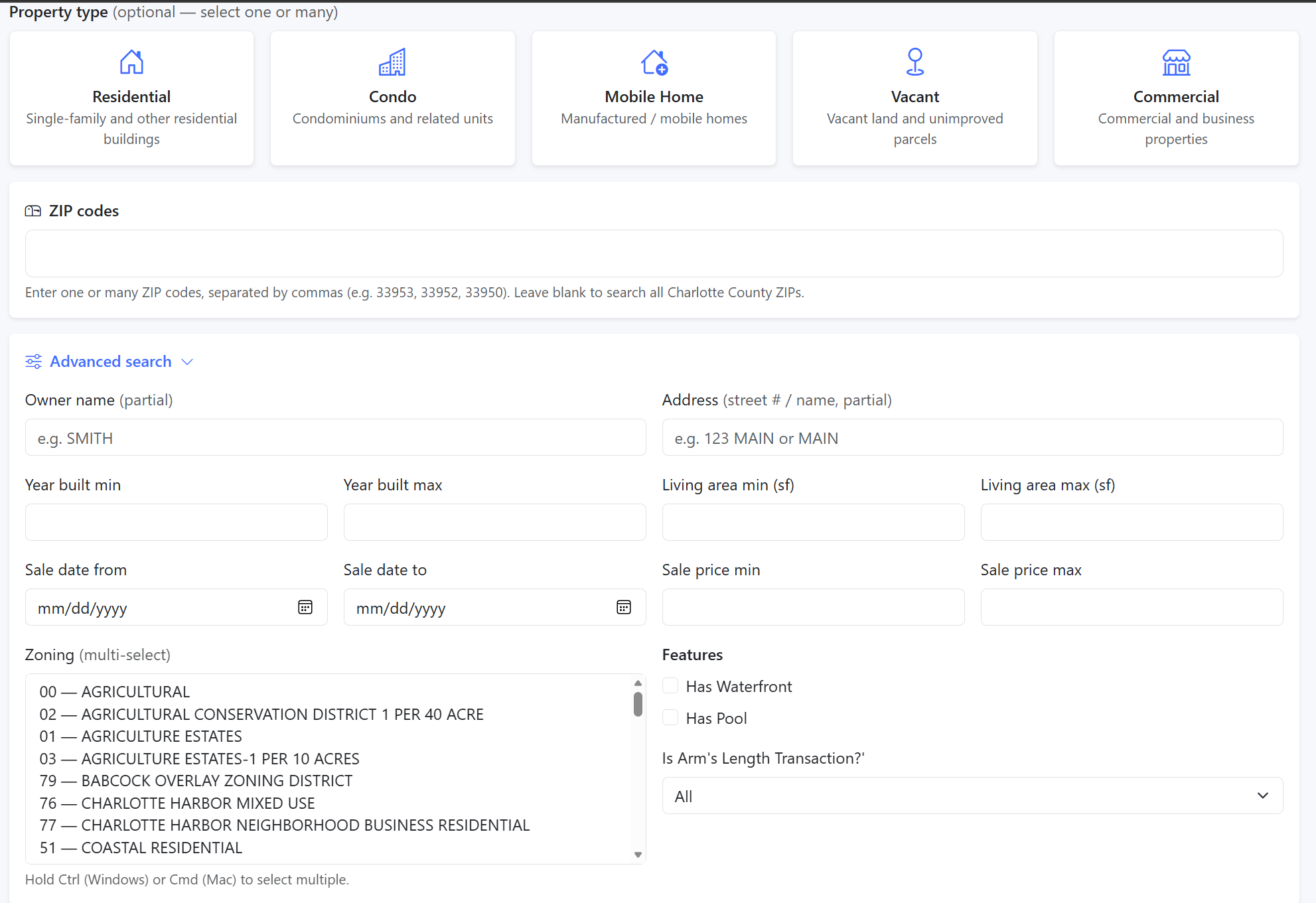
Simple searches allow you to filter results by zip code and property type, such as residential, condo, mobile home, vacant land, or commercial properties. To refine your search further, expand the Advanced Search section to apply additional criteria, like owner information, specific addresses, square footage, last sale date, last sale price, and zoning.
Simple searches allow you to filter results by zip code and property type, such as residential, condo, mobile home, vacant land, or commercial properties. To refine your search further, expand the Advanced Search section to apply additional criteria, like owner information, specific addresses, square footage, last sale date, last sale price, and zoning.
Keep useful discoveries
Sign in to use Watchlist and Saved Searches. A watchlist keeps track of individual properties; a saved search stores criteria you can run again. These features (and Excel export) require an active ParcelIQ membership — see Membership and billing.
Sign in to use Watchlist and Saved Searches. A watchlist keeps track of individual properties; a saved search stores criteria you can run again. These features (and Excel export) require an active ParcelIQ membership — see Membership and billing.
Check the source
ParcelIQ displays public county property information. Review important details with the property appraiser's office before relying on them for a decision.
ParcelIQ displays public county property information. Review important details with the property appraiser's office before relying on them for a decision.